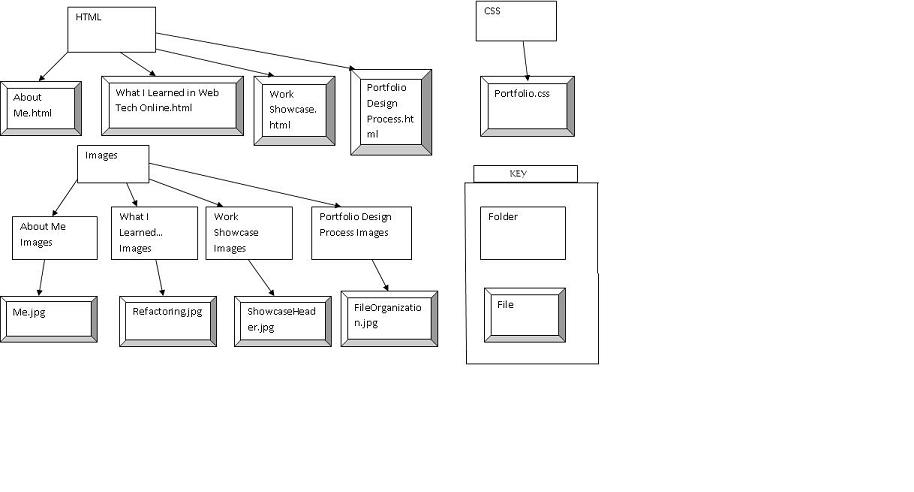
To make this portfolio, I worked incrementally. My first step was to come up with the initial navigation of the site: I knew that I wanted a home page as well as four subsites ("About Me", "What I Learned in Web Tech Online", "Work Showcase", and "Portfolio Design Process"). So, I created basic XHTML pages for the home page and the main pages of each of the subsites, to make the content like paragraphs and headings. Then, I came up with the following file organization plan:
I also came up with these block diagrams for the basic layout of the home page and each subsite:
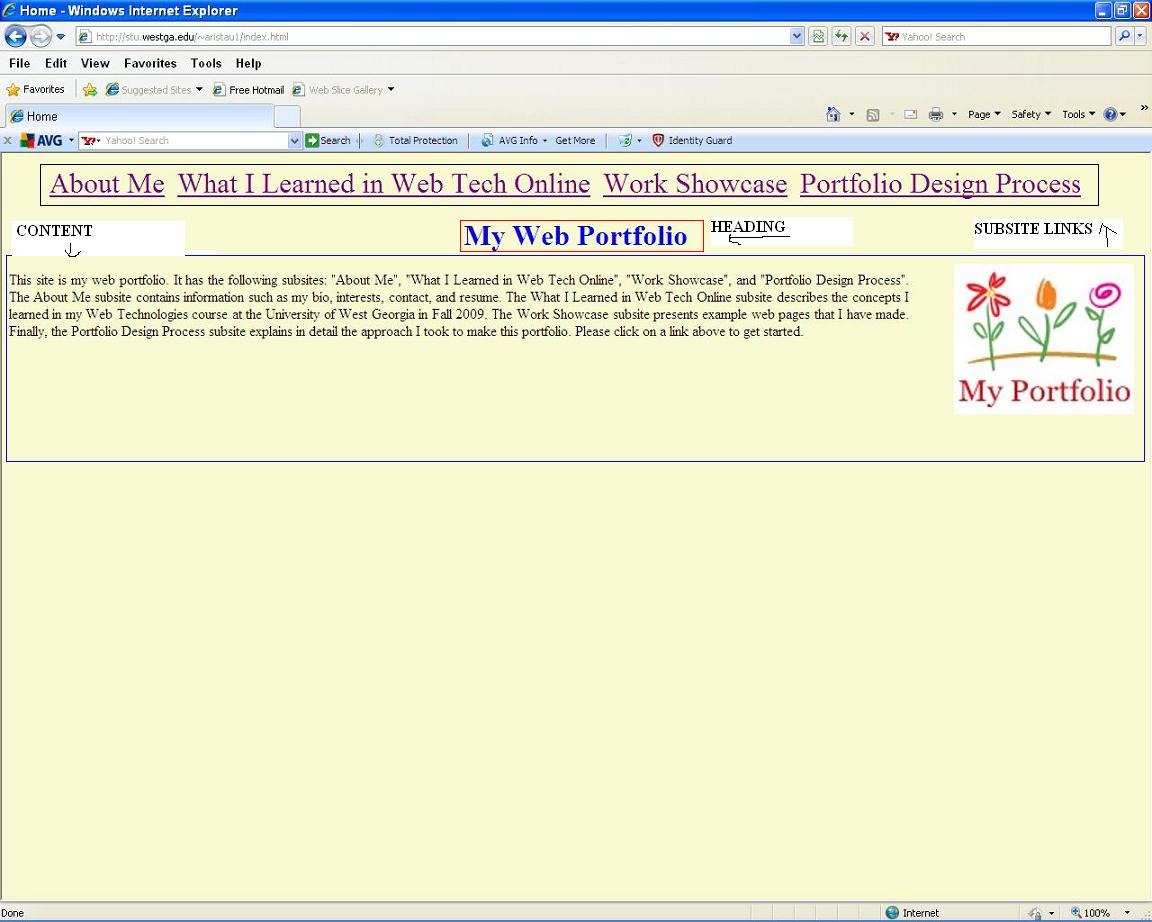
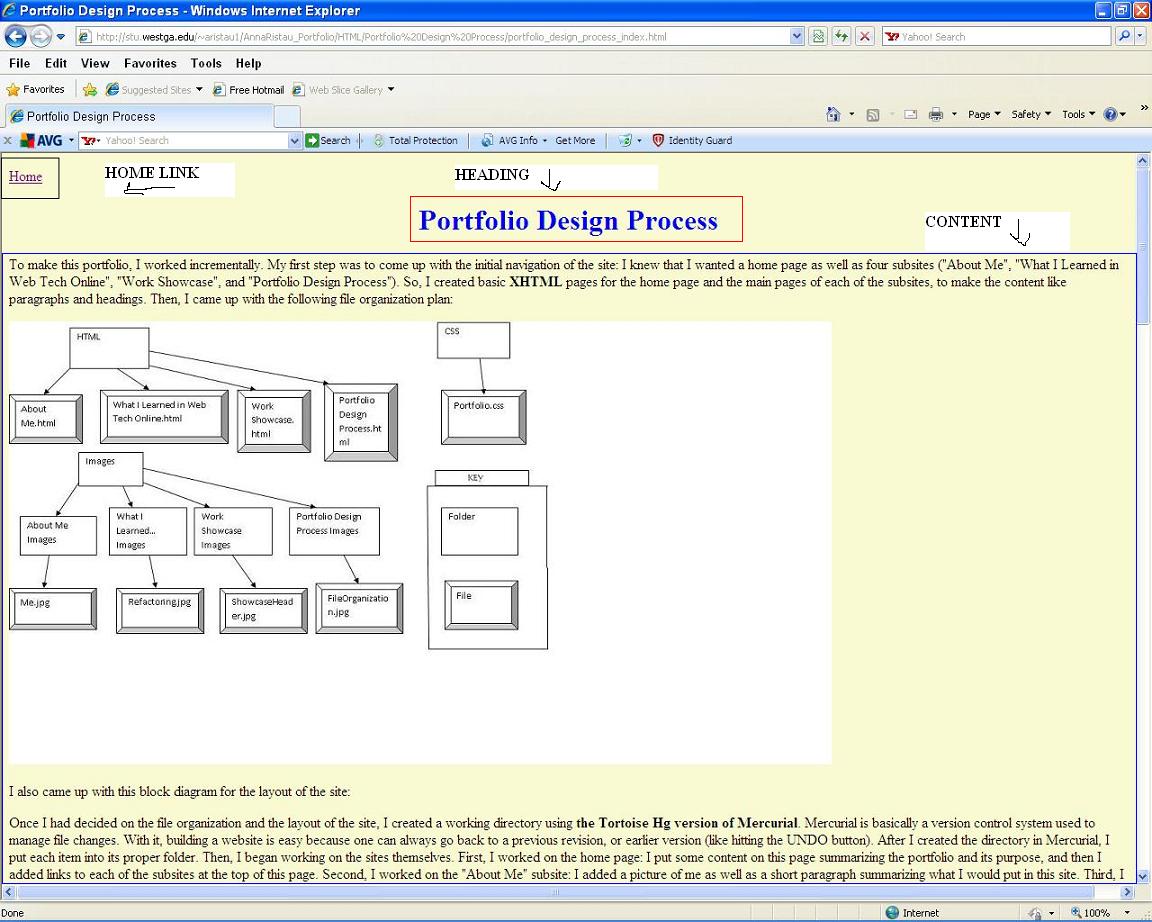
Once I had decided on the file organization and the layout of the site, I created a working directory using the Tortoise Hg version of Mercurial. Mercurial is basically a version control system used to manage file changes. With it, building a website is easy because one can always go back to a previous revision, or earlier version (like hitting the UNDO button). After I created the directory in Mercurial, I put each item into its proper folder. Then, I began working on the sites themselves. First, I worked on the home page: I put some content on this page summarizing the portfolio and its purpose, and then I added links to each of the subsites at the top of this page. Second, I worked on the "About Me" subsite: I added a picture of me as well as a short paragraph summarizing what I would put in this site. Third, I worked on the "What I Learned in Web Tech Online" subsite: I just added some basic thoughts about what I had learned in the Web Technology course that I took at the University of West Georgia in Fall 2009. Fourth, I worked on the "Work Showcase" subsite: I added links to examples of my work to this site. Finally, I worked on this subsite itself: I began to describe the process that I used to build this portfolio step-by-step.
After I had added some basic content to each of the sites, I inserted breadcrumb links at the top of each subsite, so that the user could easily navigate between pages. An example of a breadcrumb link is the one at the top of this page that the user could click on to access the home page.
Once I finished the basic content and navigation, I worked on style. I first created a CSS (Cascading Style Sheet) document. A CSS document is a document used to create a webpage's style. I named my CSS document portfolio.css and edited it to set the background color of my site and the color of my headings. Then, I linked each page of my portfolio to portfolio.css so that my site would look uniform.
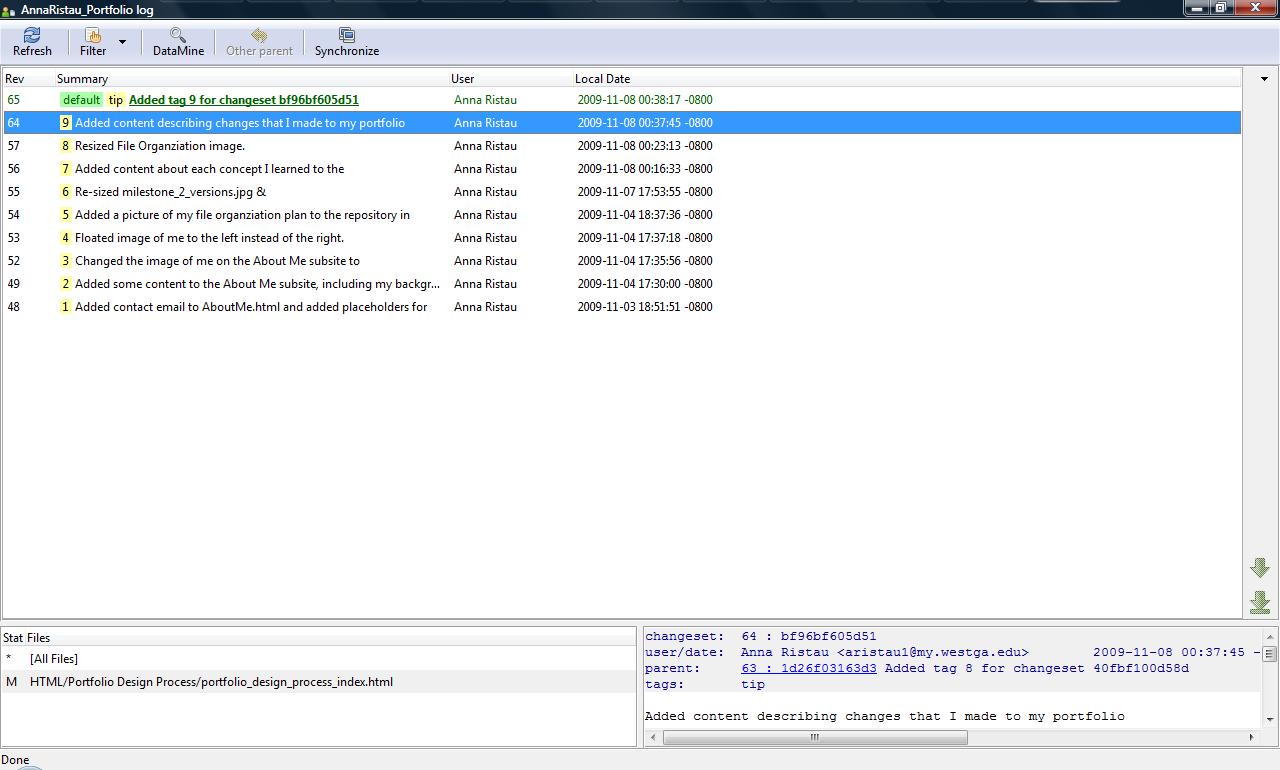
I documented all of the above changes in the Tortoise Hg changelog:
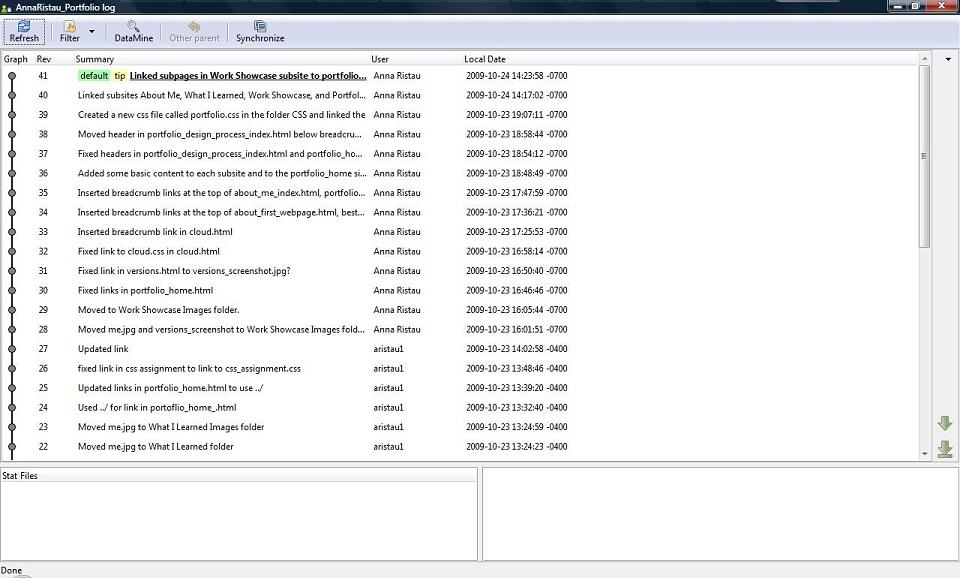
My next step was to add some more content to each of the subsites. First, I worked on the "About Me" subsite: I added some information about my background, education, and interests. I also added my contact information and a link to my resume. While I was working on this site, I decided that I wanted to change the position of my picture on the page. So, I moved it to the right side of the page, letting the text wrap around it. Second, I worked on the "What I Learned in Web Tech Online" subsite: I added content describing each of the main concepts that I had learned in Web Tech Online: XHTML, CSS, JavaScript, and Web Design. Finally, I worked on this subsite itself, adding content describing the changes that I made and uploading a screenshot of the changelog listing each individual change:
After I got some basic content into each subsite, my next step was to add some more content and work on final drafts. First, I worked on the "About Me" subsite: I added more details explaining my interests and fixed spelling errors. Next, I worked on the "What I Learned" subsite: I added more content describing each concept I learned, its use, and its presentation. Next, I worked on the "Work Showcase" subsite: I knew that I needed to display each assignment and its description, so I decided to make a table with the categories Assignment, Overview, and Description to do just that. I also subdivided the table into the categories of XHTML, CSS, Refactoring, JavaScript and Web Applications for clarity.
Once I finished working with content, I began to consider style: I changed the background color of my site to a light yellow color, and I changed the color of the headings to light blue. Then, I worked on the home page: I decided that I would rather have the links to subsites displayed in a horizontal line instead of just being listed out one-by-one. So, I edited the CSS to do this with the display inline method. Also on this subsite, I inserted a logo for my portfolio and floated it to the right side of the page with the float right method. Next, I worked on the Work Showcase subsite: The table just looked too boring, so I gave the heading rows some color to spice it up a little bit. Finally, I worked on this subsite, adding this screenshot of my changes:
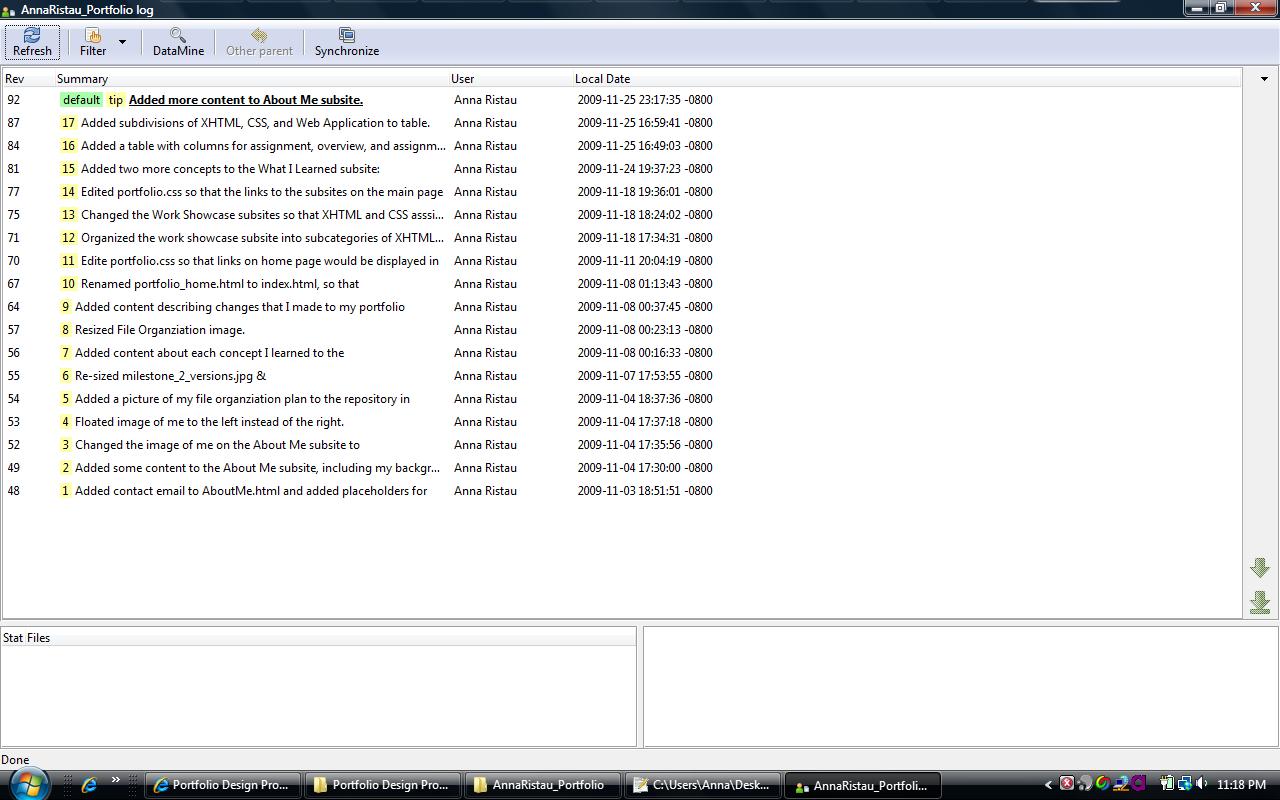
After I had finished adding all the content that I wanted to my portfolio, my final step was to implement some novel technological features that would improve style and functionality. So, I first considered the "About Me" subsite: I realized that the link to my resume was opening in a default window when clicked on, which prevented the user from viewing all of it. So, I decided to create technological feature #1: my own custom JavaScript window (with a defined width and height, resizing arrows, and a scrollbar). Next, I worked on the "What I Learned" subsite: I noticed that this subsite had a lot of content on it and I was getting tired of scrolling through it all. So, I decided to create technological feature #2: a dynamic table of contents that listed all the headings on the page and would jump to any heading that was clicked on. Then, I began to try to create "jump to top" links in each section of the page that would let the user jump to the top of the page. In my opinion, so many links on the page made the page look very messy. This led me to create technological feature #3: one dynamic "jump to top" link that would follow the user down the page as he/she scrolled. I documented all of these changes in this changelog: